-
WebClone 코드 풀이[Python] 2023. 6. 5. 04:09
코드를 짜기 전에 먼저 어떤 순서로 어떻게 짜 볼 것인지 구상했었다.
이번 목표는 복사해서 붙여넣지 말고 오로지 내 머릿속에서 나온 코드들로만 웹 페이지를 구성해보는게 목표였다.
먼저 header 부분부터 만들고
그 다음 footer 부분을 만들고
마지막으로 중간에 있는 공지사항이나 갤러리, 바로가기 등을 순서로 시도해보았다.
중간 부분 만드는 데 고생 좀 했다.. 배치가 내 마음 같지가 않다.
중간에 있는 갤러리 부분이 상당히 이상하다.
<!DOCTYPE html>
<html lang="ko">

<head>
    <style>
        #main_center {
            width: 1200px;
            height: 700px;
            margin: 0 auto;
        }

        #header {
            position: relative;
            display: flex;
            width: 100%;
            height: 100px;
            background-color: #3cb149;
        }

        #mainLogo {
            display: flex;
            width: 30%;
            color: white;
        }

        #nav {
            display: flex;
            width: 70%;
            justify-content: center;
            align-items: center;
        }

        a {
            width: 100%;
            padding: 30px 0;
            text-align: center;
            text-decoration: none;
            color: #333835;
            font-weight: 600;
        }

        #list {
            display: none;
            position: absolute;
            top: 100px;
            right: 0;
            z-index: 1;
            width: 100%;
            height: 120px;
            background-color: #393a3e;

        }

        #list {}


        #mainImg {
            width: 1200px;
            height: 300px;
            background-color: #333835;
        }

        #main1 {
            position: relative;
            width: 400px;
            height: 200px;
            float: left;
        }

        #annonce {
            width: 130px;
            height: 30px;
            background-color: #333333;
            color: white;
            font-weight: 600;
            text-align: center;
            line-height: 30px;
        }

        #annonce2 {
            width: 130px;
            height: 30px;
            background-color: #333333;
            color: white;
            font-weight: 600;
            text-align: center;
            line-height: 30px;
            float: left;
        }

        #main1 {
            width: 400px;
            height: 175px;
            border: 1px solid #dbdbdb;
            box-sizing: border-box;
            display: block;
            float: left;
        }

        #main2 {
            width: 400px;
            height: 175px;
            border: 1px solid #dbdbdb;
            box-sizing: border-box;
            display: block;
            float: left;


        }

        #main3 {
            width: 400px;
            height: 200px;
            float: left;
        }

        #notice {
            width: 400px;
            height: 200px;
            float: left;
        }

        #galary {
            width: 400px;
            height: 200px;
            float: left;
            display: block;
        }

        #galary_first {
            width: 130px;
            height: 30px;
            background-color: #333333;
            color: white;
            font-weight: 600;
            text-align: center;
            line-height: 30px;
        }

        #sub-image {
            width: 100%;
            height: 100%;
            background-image: url(mainimg1.jpg);
            background-position: center;
        }

        #now-go {
            position: relative;
            top: 50%;
            left: 50%;
            transform: translate(-50%, -50%);
            display: inline-block;
            width: 180px;
            height: 40px;
            text-align: center;
            line-height: 40px;
            font-weight: 600;
            background-color: rgba(60, 177, 73, 0.6);
        }

        #footer {
            display: flex;
            width: 100%;
            height: 100px;
            background-color: #222328;
            color: #4e4f53;
        }

        #footer>div:first-child {
            display: flex;
            width: 25%;
        }

        #footer>div:first-child>h1 {
            margin-top: 25px;
            margin-left: 35px;
        }

        #footer>span {
            display: flex;
            width: 50%;
            justify-content: center;
            align-items: center;
            font-weight: 600;
            color: #5f6064;
        }

        #footer>div:last-child {
            display: flex;
            width: 25%;
            justify-content: center;
            align-items: center;
        }

        #footer>div:last-child img {
            width: 60px;
            height: 60px;
            vertical-align: middle;
            border-radius: 50%;
            margin: 13px;
        }


    </style>
    <meta charset="UTF-8">
    <meta http-equiv="X-UA-Compatible" content="IE=edge">
    <meta name="viewport" content="width=device-width, initial-scale=1.0">
    <title>webClone</title>
</head>

<body>
    <div id="main_center">
        <div id="header">

            <div id="mainLogo">
                <h1 style="margin-top: 25px; margin-left: 35px;">Green 복지재단</h1>
            </div>

            <div id="nav">
                <a href="#">재단소개</a>
                <a href="#">후원하기</a>
                <a href="#">자료실</a>
                <a href="#">스토리</a>

                <div id="list">
                    <ul>
                        <li>설립취지</li>
                        <li>연혁</li>
                        <li>찾아오시는길</li>
                    </ul>
                    <ul>
                        <li>국내후원</li>
                        <li>국외후원</li>
                        <li>맞춤후원</li>
                    </ul>
                    <ul>
                        <li>서식자료실</li>
                        <li>사진자료실</li>
                        <li>후원양식</li>
                    </ul>
                    <ul>
                        <li>웹진</li>
                        <li>보고서</li>
                        <li>나의후원</li>
                    </ul>
                </div>
            </div>


        </div>
        <div id="mainIMG">
            <img src="mainimg1.jpg" alt="" height="300px" width="100%">
        </div>
        <div id="annonce">
            <span>공지사항</span>
        </div>

        <div id="main1">
            <div id="notice">
                <div
                    style="padding: 10px 25% 10px 0; text-decoration: none; margin-left: 5px; list-style: none; padding: 10px 0;">
                    <span>Green 복지재단 공지사항1</span>
                    <span style="float: right; margin-right: 10px;">2020.11.23</span>
                </div>
                <div
                    style="background-color: #dbdbdb; padding: 10px 25% 10px 0; text-decoration: none; margin-left: 5px; list-style: none; padding: 10px 0;">
                    <span>Green 복지재단 공지사항2</span>
                    <span style="float: right; margin-right: 10px;">2020.11.23</span>
                </div>
                <div
                    style="padding: 10px 25% 10px 0; text-decoration: none; margin-left: 5px; list-style: none; padding: 10px 0;">
                    <span>Green 복지재단 공지사항3</span>
                    <span style="float: right; margin-right: 10px;">2020.11.23</span>
                </div>
                <div
                    style="background-color: #dbdbdb; padding: 10px 25% 10px 0; text-decoration: none; margin-left: 5px; list-style: none; padding: 10px 0;">
                    <span>Green 복지재단 공지사항4</span>
                    <span style="float: right; margin-right: 10px;">2020.11.23</span>
                </div>
            </div>

        </div>

        <div id="main2">
            <ul>
                <li>
                    <img src="cloud.png" alt=""
                        style="width: 100px; overflow-clip-margin: content-box; overflow: clip; float: left;">
                </li>
                <li>
                    <img src="cloud.png" alt=""
                        style="width: 100px; overflow-clip-margin: content-box; overflow: clip; float: left;">
                </li>
                <li>
                    <img src="cloud.png" alt=""
                        style="width: 100px; overflow-clip-margin: content-box; overflow: clip; float: left;">
                </li>
            </ul>
        </div>

        <div id="main3">
            <div id="sub-image">
                <div id="now-go">
                    <a href="#">바로가기</a>
                </div>
            </div>
        </div>
        <div id="footer">
            <div>
                <h1>Green 복지재단</h1>
            </div>
            <span>COPYRIGHT © by WEBDESIGN ALL RIGHTS RESERBVED</span>
            <div>
                <a href="https://ko-kr.facebook.com/"><img src="facebook_logo.png" alt="facebook"></a>
                <a href="https://twitter.com/?lang=ko"><img src="twitter_logo.png" alt="twitter"></a>
                <a href="https://www.instagram.com/?hl=ko"><img src="instagram_logo.png" alt="instagram"></a>
            </div>
        </div>
    </div>
</body>

</html>
크게 세 개로 나누어서 설명할 수 있다.
header 부분
main 부분
footer 부분
header
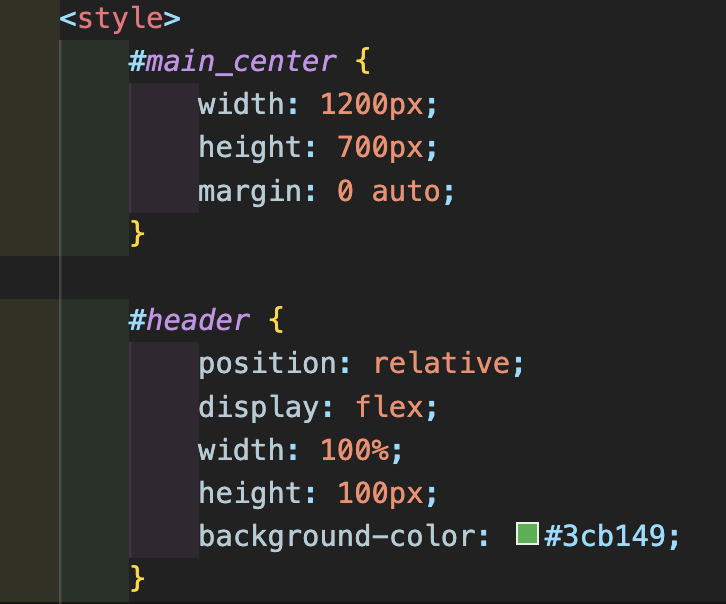
일단 전체적인 틀을 width : 1200px , height: 700px, margin: 0 auto; 로 설정하였다.
그리고 # 을 사용하여 div 태그로 묶어서 사용할 수 있도록 하였다.
#header 에 position: relative; 를 추가하여 원래 위치에서 벗어나게 설정할 수 있도록 하였다.
display: flex; 를 사용하여 가로로 정렬될 수 있게 하였고
width: 100%; , height: 100px;, background-color: 3cb149; 로 크기와 색상을 정해주었다.

mainLogo 로 로고를 만들어 주고
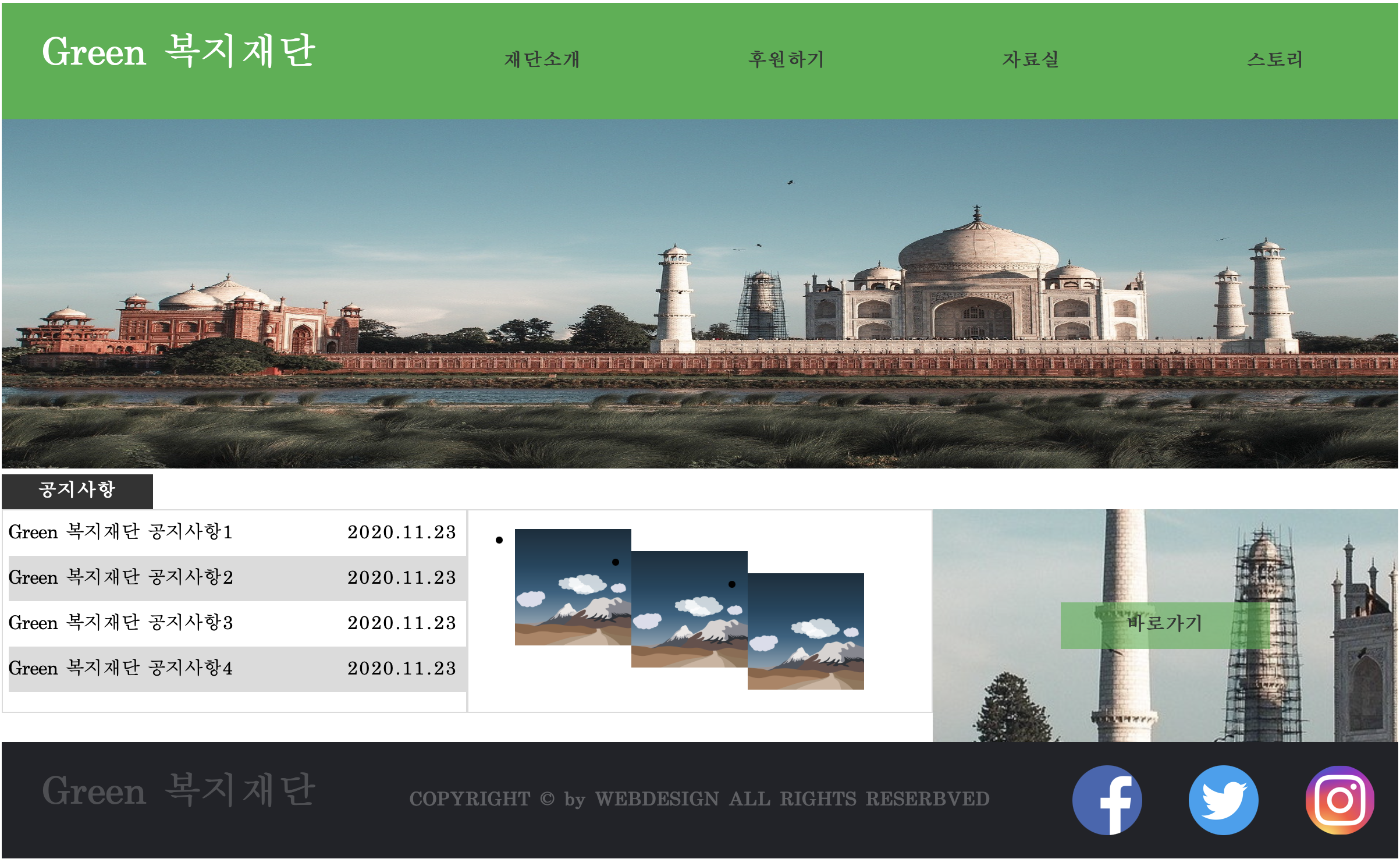
nav 로 상단에 초록색 네비게이션 바를 만들어 주었다.
호버 기능을 추가해야 하는데 조금 더 고민해보아야 할 것 같다.
계속 호버가 되면 안에 있는 글자들이 뭉개져서 완벽하지 않다고 판단. -> 완벽하게 구현하기 전까지 연구좀 해봐야될것 같음
footer
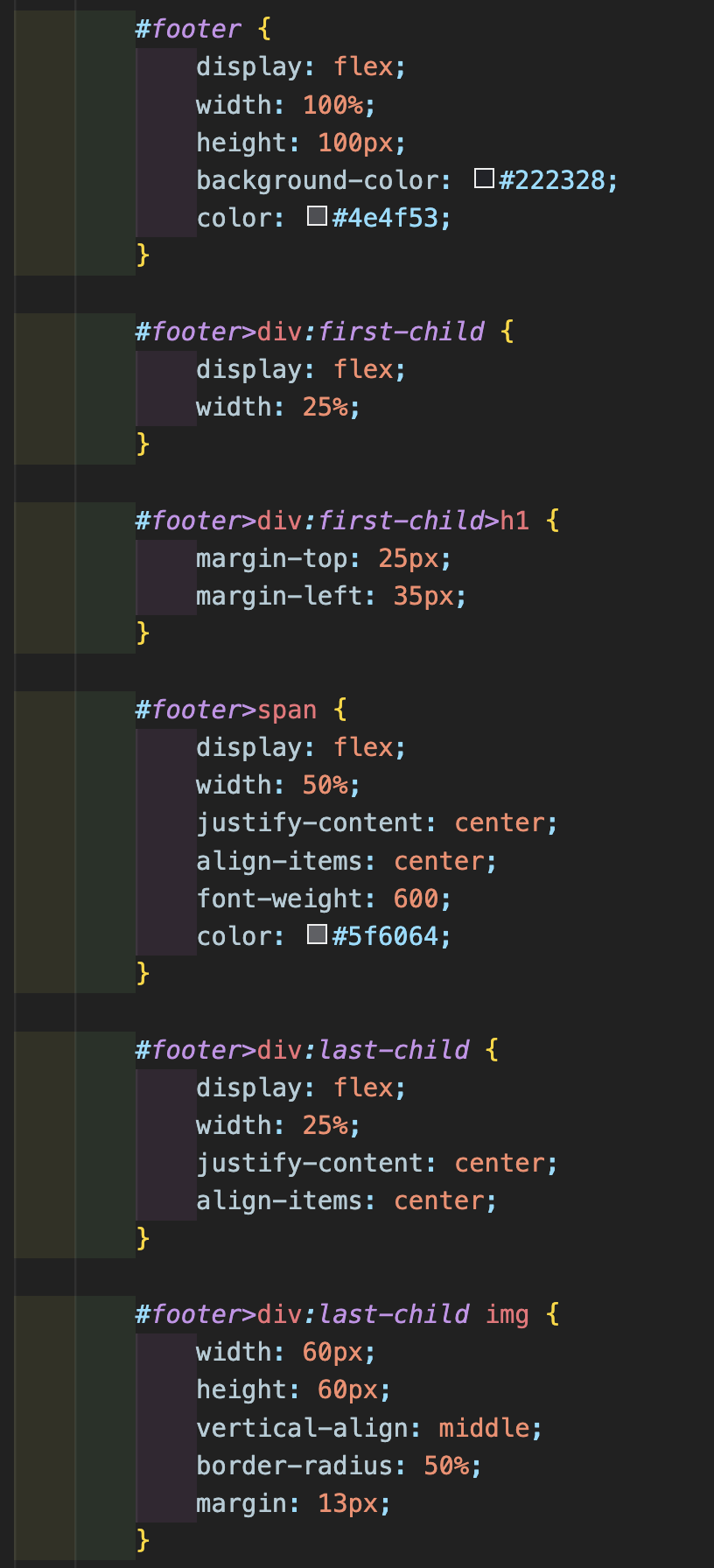
footer 도 마찬가지로 display: flex; 를 사용해 가로로 정렬되게 하였고
weight: 100%; height: 100px; background-color: #222328; color: #4ef53; 등 크기와 색을 정해주었다.
#footer > div:first-child > h1 { ...
=> #footer 안에서 div: first-child 안에 있는 h1 태그에서만
#footer > span { ...
=> #footer 안에 span 태그일 때
#footer > div:last-child img { ...
=> #footer 안에 img 태그 일 떄 (페이스북, 인스타, 트위터 로고 넣을 때 적용됨)
main
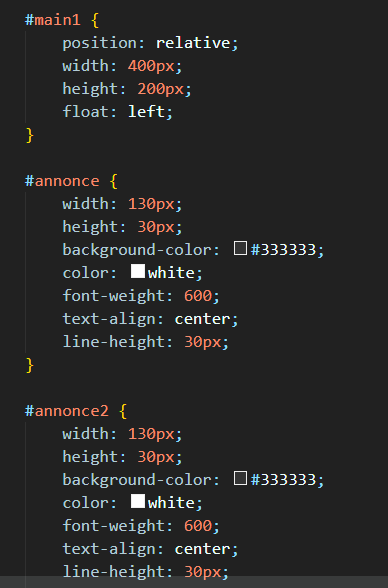
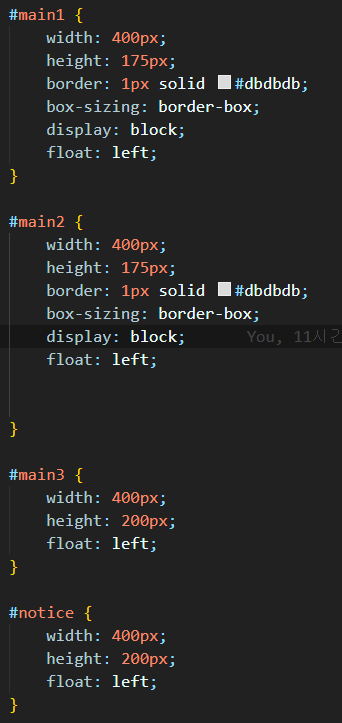
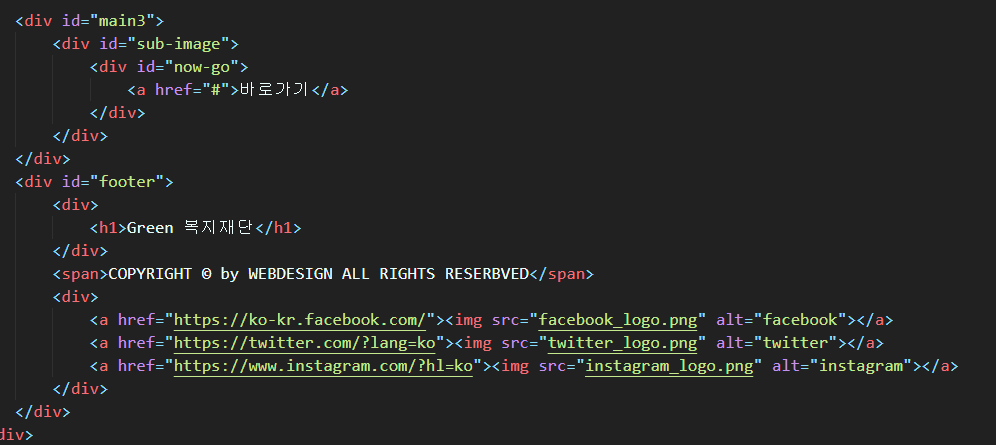
main1 => 가장 왼쪽에 위치한 공지사항의 틀을 정해줌
main2 => 중간에 있는 갤러리 위치의 틀을 정해줌
main3 => 가장 오른쪽에 있는 바로가기 와 사진들의 틀을 정해줌
annonce => "공지사항" 이라는 박스와 글자들을 표현하기 위함
annonce2 => "갤러리" 라는 박스와 글자들을 표현하려고 했으나 실패..
이상입니다.
'[Python]' 카테고리의 다른 글
Pycham 터미널 간단 명령어 (0) 2024.01.16 2023.5.15 ~ 2023.5.21 공부일지 (크롤링 - 3) [코드풀이] (6) 2023.05.22 2023.5.8 ~ 2023.5.14 공부일지 (크롤링 - 2) (6) 2023.05.14 2023.4.24 ~ 2023.4.30 공부일지 (웹 크롤링 이론) (5) 2023.05.01 2023.4.17 ~ 2023.4.23 공부일지 (파이썬 1장 ~ 5장) (4) 2023.04.24